
If your team keeps asking which version is the latest, whether a file lives in Teams or someone's desktop, or why a key document vanished when an employee left, you don't have a storage problem. You have an ownership and governance problem.
That's where the SharePoint vs OneDrive decision matters. Most businesses already use Microsoft 365, but many still treat SharePoint and OneDrive as interchangeable. They aren't. They work together, but they solve different problems. One is built around the individual. The other is built around the organisation.
For UK SMEs, especially in legal, finance, engineering, manufacturing, and other regulated environments, that distinction affects more than convenience. It affects document control, staff handovers, data security, auditability, and how much time your team wastes hunting for files.
Table of Contents
- The Common File Chaos Scenario in Your Business
- The Fundamental Difference Personal vs Team Files
- Core Comparison Storage Sync and Collaboration
- Permissions Governance and Security Deep Dive
- Practical Scenarios When to Use Each Tool
- Beyond the Recycle Bin Backup and Migration Strategy
- Building Your Managed M365 Strategy with Blowfish
The Common File Chaos Scenario in Your Business
A typical SME usually doesn't set out to create file chaos. It happens gradually. Someone saves a proposal to their desktop. Another person uploads a copy into Teams. A manager keeps the “final” version in OneDrive. Then a client asks for the signed version, and nobody is fully sure which file is the record.
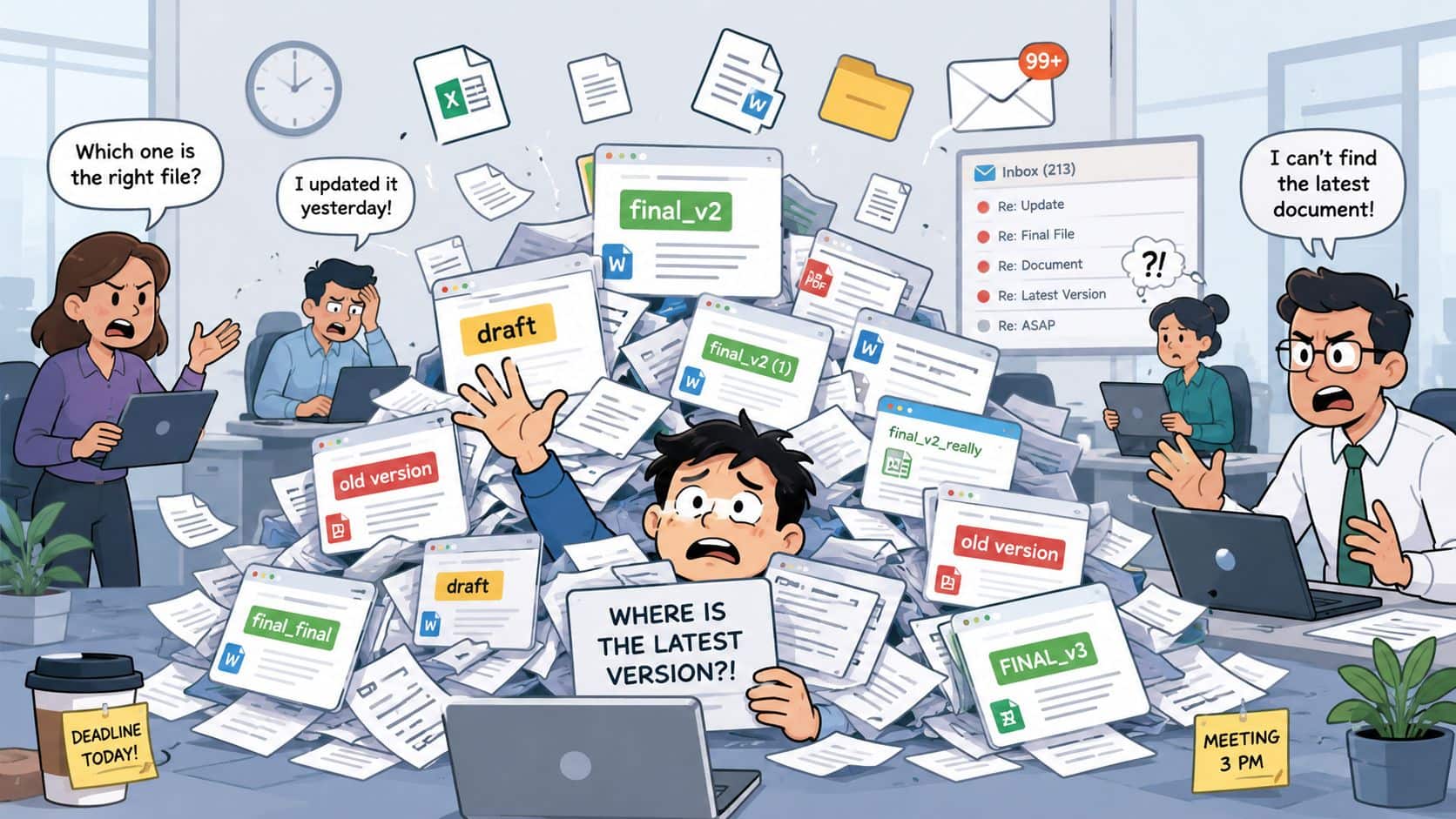
This is the point where businesses start blaming the tools, but the tools usually aren't the main issue. The problem is that data is being stored without clear rules around ownership, sharing, and location. If your staff already struggle with finding documents properly in Teams, that's often a sign the wider Microsoft 365 file structure hasn't been thought through.
A sales team might keep quotes in personal folders because it feels quicker. An accounts team might email spreadsheets back and forth because they don't trust shared folders. A project team might create duplicate copies “just in case” because nobody wants to overwrite the wrong document. All of that creates friction.
Files don't become manageable just because they're in the cloud. They become manageable when the business decides who owns them, who needs access, and where the authoritative version lives.
The SharePoint vs OneDrive question sits right in the middle of that. It isn't a niche IT debate. It's a practical business decision about whether documents belong to a person or to the company. Get that wrong, and your team wastes time, shares data inconsistently, and builds risk into everyday work.
The Fundamental Difference Personal vs Team Files
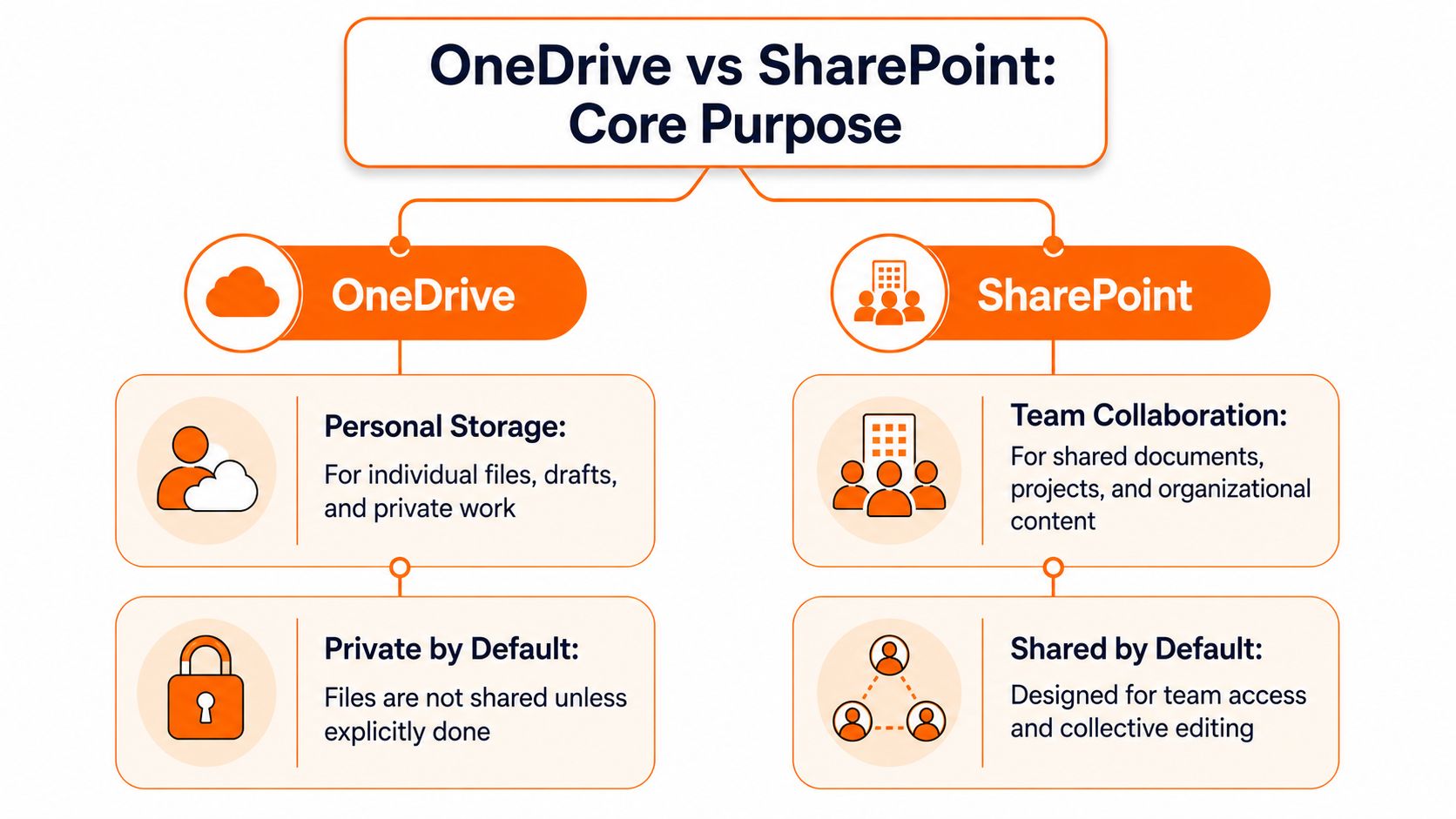
The decision is simpler than it first looks. OneDrive is for individual work in progress. SharePoint is for business-owned files that a team relies on.
That distinction matters more than the feature list. In many SMEs, the core problem is not whether a file can be synced or shared. It is whether the business still has control of that file when someone goes on leave, changes role, or leaves the company.
Microsoft describes OneDrive as the files experience for Microsoft 365 and SharePoint as the content service behind shared files across Microsoft 365, including Teams, as explained in Microsoft's guidance on when to save files to OneDrive or SharePoint. For a business owner, the practical question is more direct. Does this file belong to a person, or does it belong to the company?
Where each one fits
OneDrive works like a locked desk drawer. It is a sensible place for draft proposals, private working notes, early-stage spreadsheets, and documents that one person is still shaping.
SharePoint is the company filing system. It is built for department documents, project libraries, approved templates, procedures, client records, and any file that needs to stay available beyond one employee's account.
That line often gets blurred. Staff save files wherever is fastest, then the file gradually becomes important without anyone moving it into the right place. What started as one person's draft turns into the latest customer pricing sheet, the active project plan, or the version of a policy everyone assumes is current.
For firms reviewing cloud storage options for business use, this is the point that usually gets missed. SharePoint and OneDrive both store files in Microsoft 365, but they create very different levels of ownership, oversight, and continuity.
The operational rule that keeps things clean
A draft board report in OneDrive is fine while one person is editing it. The approved board pack should sit in SharePoint, where the right people can find it and access does not depend on one user account.
A rough planning spreadsheet can stay in OneDrive. The live departmental budget used by finance and management belongs in SharePoint.
If the business would be in trouble without the file, don't leave it living in one person's OneDrive.
That rule is especially important in UK SMEs with compliance obligations. In regulated environments, file location affects retention, access control, audit readiness, and what happens during staff turnover. We see problems when businesses assume “it's in Microsoft 365” automatically means it is governed properly. It does not. The platform gives you both personal and company-controlled spaces, and choosing the wrong one creates avoidable risk.
Used properly, the split is helpful. Staff can work privately in OneDrive without cluttering shared libraries, and teams can keep official documents in SharePoint where they are easier to manage, secure, and hand over.
Core Comparison Storage Sync and Collaboration
The practical confusion starts because both tools can look the same on a laptop. Staff open File Explorer, see folders syncing, and assume SharePoint and OneDrive do the same job. They do not. The difference is less about the sync icon and more about who owns the content, how teams work with it, and what happens when that file becomes part of daily operations.
| Feature | OneDrive for Business | SharePoint Online |
|---|---|---|
| Primary purpose | Personal work files | Team and organisational content |
| Ownership | User-owned context | Organisation-owned context |
| Best for | Drafts, individual working documents, temporary sharing | Shared records, policies, project files, departmental libraries |
| Storage model | Per-user personal storage | Shared organisational storage |
| Sync | Syncs to device through Microsoft 365 file sync experience | Syncs to device through Microsoft 365 file sync experience |
| Collaboration style | Ad hoc sharing from an individual space | Structured collaboration in team libraries |
| Governance fit | Lighter, user-led control | Stronger organisational control |
For businesses reviewing cloud storage options for business use, this distinction matters early. Both services live inside Microsoft 365, both store files in the cloud, and both support local sync. The main difference is operating model. OneDrive is built around an individual user. SharePoint is built around a team, a department, or the wider business.
Storage ownership drives the right decision
Storage is not just a capacity question. It is an ownership question.
OneDrive gives each user their own working area. That suits personal drafts, notes, and files that are still being shaped before anyone else needs to rely on them. SharePoint holds content in a company-managed structure, so shared documents stay attached to the business rather than to one employee's account.
That matters in UK SMEs because file ownership affects handover, audit readiness, and day-to-day continuity. If a sales manager keeps the active proposal library in OneDrive, the business inherits that person's filing habits, sharing choices, and folder structure. If the same content sits in SharePoint, it stays in the proper team location with clearer ownership and less dependence on one person staying organised.
Sync is similar for users, but the risk profile is different
Microsoft has made sync familiar on purpose. Staff can work from the desktop, save files locally, and let changes sync back to Microsoft 365. That is useful. It reduces resistance to cloud working and helps teams move away from old file servers without changing every habit at once.
The problem appears when synced folders hide the context. A folder from SharePoint can sit beside a folder from OneDrive and look almost identical, but they carry different operational consequences. One is part of a personal workspace. The other is part of a managed team repository.
This is one of the areas we focus on during Microsoft 365 rollouts at Blowfish Technology. Clear site names, sensible library structures, and basic user guidance prevent a lot of messy file sprawl later.
The split becomes most obvious in collaboration styles
OneDrive supports collaboration, but it does so from the starting point of personal ownership. A user creates the file, decides who gets access, and shares it outward. That works well for limited review, short-term input, or documents that are still at draft stage.
SharePoint handles ongoing collaboration more cleanly because the file starts in a shared location with a team context. That suits work such as:
- Department libraries where several people need the same current document
- Project files that pass between contributors over weeks or months
- Policies and templates that staff need to find in one agreed location
- Operational records that should remain with the company, regardless of who created them
In practice, the best setup is rarely OneDrive or SharePoint on its own. Staff need both. OneDrive gives users a private working area. SharePoint gives the business a controlled place for live shared content. Problems start when companies blur that line and let personal storage become the home for team documents. That is where collaboration gets slower, access becomes inconsistent, and governance work becomes harder than it needs to be.
Permissions Governance and Security Deep Dive
Permissions are often the primary dividing line between a tidy Microsoft 365 setup and a risky one. The question is not whether files are encrypted. It is whether access follows your business rules, whether someone reviews that access, and whether you can prove control when a client, insurer, or auditor asks.
Both OneDrive and SharePoint sit inside the same Microsoft 365 security model, so the baseline protections are comparable. The practical difference is how access is granted, how long it stays in place, and who remains responsible for it. For UK SMEs, especially in finance, legal, healthcare, engineering, and professional services, that difference affects compliance, offboarding, and day-to-day efficiency.
Simple sharing versus controlled access
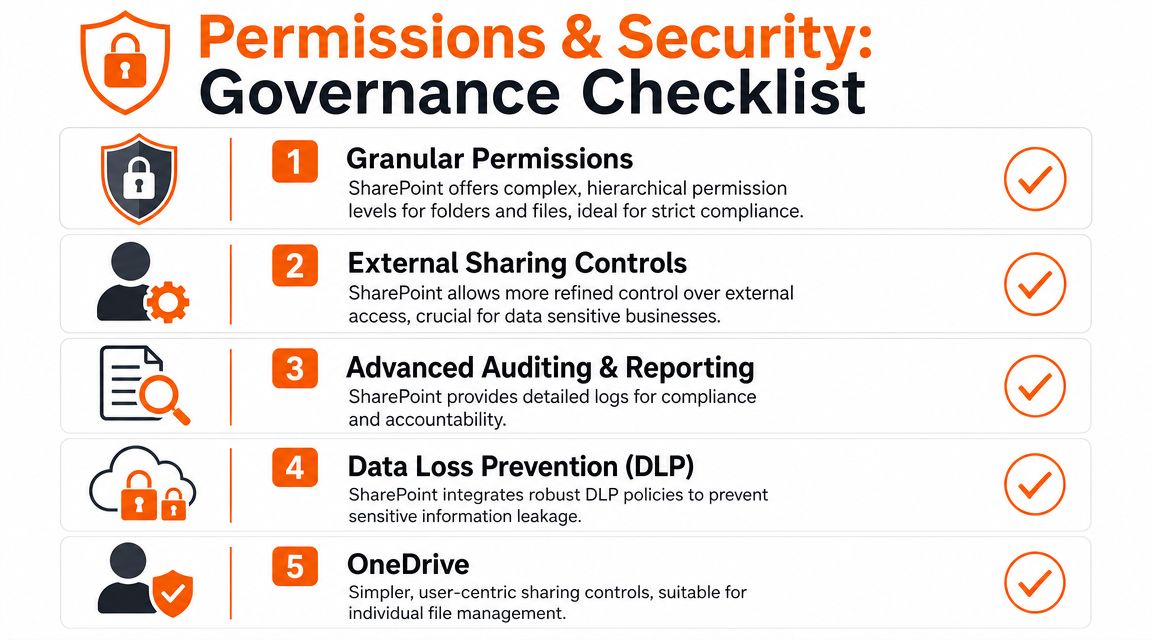
OneDrive fits a user-managed sharing model. A member of staff creates a file, decides who can see it, and sends access out from their own area. That works for drafts, ad hoc review, and short-term collaboration. It also creates a common governance problem. Access decisions sit with the individual, not with the business structure.
SharePoint enables stronger governance. Permissions can be built around sites, libraries, Microsoft 365 groups, and defined owners. That makes access more predictable because it follows departments, projects, or job roles instead of personal judgement.
A finance library can sit inside a restricted site with named owners and controlled membership. An HR site can separate confidential employee records from general policies. A project workspace can give suppliers limited access without exposing unrelated documents. Those controls are harder to maintain if the same content lives in personal storage and is shared case by case.
Governance check: If access should follow role, team, or process, store the content in SharePoint.
Why regulated firms tend to rely more on SharePoint
Regulated businesses need more than a place to save files. They need consistency. They need records to stay with the company when staff change roles or leave. They need permission decisions that can be reviewed and corrected without chasing individuals.
That makes SharePoint the better fit for:
- Policy libraries where staff should only see current, approved documents
- Client or matter files where access must follow assigned teams
- Controlled templates that need version control and central ownership
- Operational records that must remain available beyond one employee's account
OneDrive still matters in those environments. Staff need private space for drafting, note-taking, and early working papers. Problems start when draft space becomes the long-term home for business records, because retention, ownership, and access review all become harder to manage.
Identity controls matter just as much as file location. A well-designed SharePoint structure can still be exposed if user accounts are weak, which is why two-factor authentication for business users should be part of the wider Microsoft 365 setup.
Common failures we see in the field
Governance issues rarely start with complex attacks. They start with ordinary shortcuts.
- Over-sharing from OneDrive leaves old links and permissions in place long after the work is finished.
- Business records stored in personal accounts create risk during leavers, handovers, or mailbox and account changes.
- Broken inheritance and folder-by-folder exceptions make SharePoint permissions difficult to audit and support.
- Unowned Teams and sites lead to duplicate libraries, unclear responsibility, and inconsistent access decisions.
This is the operational point many businesses miss. SharePoint is not automatically well governed just because it is SharePoint. It needs site ownership, naming standards, sensible library design, and periodic permission reviews. OneDrive is not insecure by default, but it becomes a poor record system when team documents are allowed to live there indefinitely.
At Blowfish Technology, this is often the difference between a Microsoft 365 tenant that stays manageable and one that becomes expensive to clean up later. Clear rules solve most of it. Personal work stays personal until there is a business reason to promote it. Shared content moves into SharePoint, where the company can control it properly.
Practical Scenarios When to Use Each Tool
Users don't need a philosophical answer. They need to know where to save the file today.
Use OneDrive for work in progress
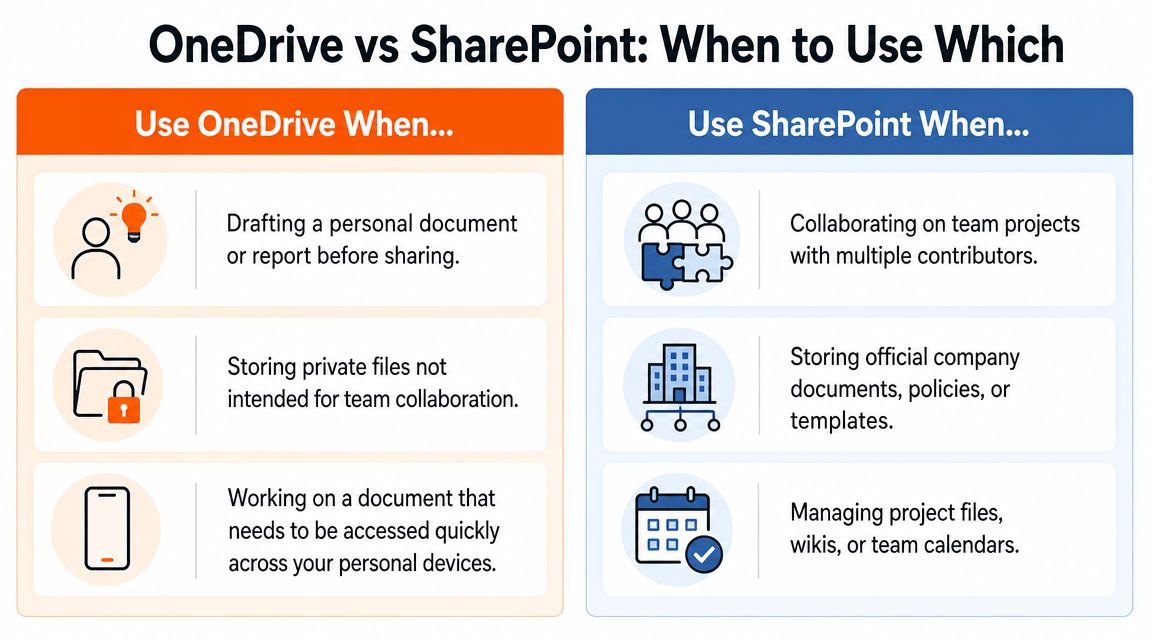
OneDrive is the right choice when the file is still personal in nature, even if it may later become shared.
Use it for:
- Draft proposals before the wider team needs to review them
- Personal working files that support your job but don't form part of a team record
- Private notes such as one-to-one preparation or early planning material
- Short-term sharing where an individual needs to send a file directly to someone
This is especially useful for staff who move between devices and need quick access to their own work files.
Use SharePoint for business-owned information
SharePoint is the right place once the content belongs to a team, process, or function rather than a single person.
Typical examples include:
- Project documentation used by multiple contributors
- Company policies and procedures that staff must be able to find reliably
- Department templates such as approved forms, letters, or reports
- Client and contract records that shouldn't disappear because one person leaves
This is also where Microsoft 365 works well with Teams, because the files behind team collaboration usually need a proper shared home.
A short overview can help non-technical users see the distinction in action:
The handoff that keeps file sprawl under control
The best working pattern is usually not OneDrive or SharePoint. It's OneDrive then SharePoint.
Someone starts a document privately. Once the file needs collaborative editing, departmental access, or formal retention, it gets moved into the right SharePoint library. That handoff is what stops personal workspaces turning into long-term business archives.
A practical checklist for staff looks like this:
- Start in OneDrive if you're still drafting and don't need team ownership yet.
- Move to SharePoint when others need reliable access.
- Keep the approved version in SharePoint if the document supports a business process.
- Avoid duplicate copies unless there's a clear operational reason.
A file can begin as personal work and become company information. Good Microsoft 365 usage depends on recognising when that change happens.
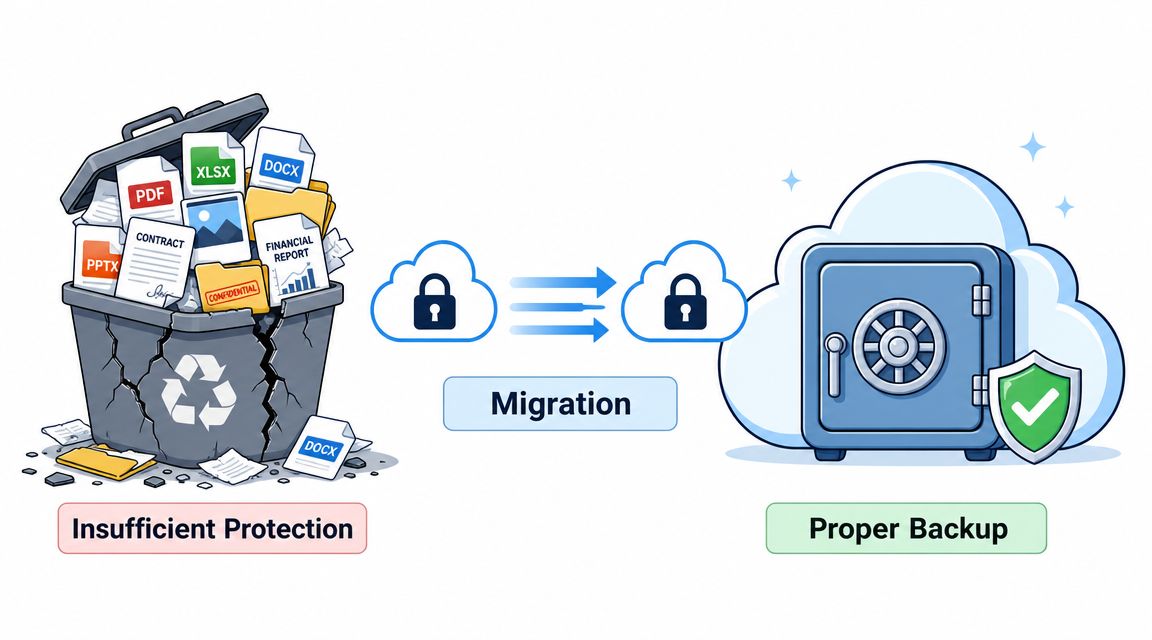
Beyond the Recycle Bin Backup and Migration Strategy
A lot of businesses assume Microsoft 365 already covers backup in the way they expect. That assumption usually surfaces after a deletion, a sync issue, a ransomware event, or a messy leaver scenario.
Why recycle bins are not a backup strategy
Recycle bins help with straightforward mistakes. They aren't a complete business continuity plan.
If data is corrupted, deleted late, overwritten, or affected by a wider security incident, you need a recovery approach that's designed around business requirements, not just convenience features. That applies to both SharePoint and OneDrive because both can hold material your business relies on every day.
For that reason, many firms add a dedicated Microsoft 365 backup layer. One example is managed Microsoft 365 backup that covers both SharePoint and OneDrive data, with recovery options that support operational continuity rather than basic file retrieval.
Migration is a structure project not just a file move
Moving from file servers, old shared drives, or another cloud platform into Microsoft 365 isn't just about copying folders across.
The difficult part is deciding:
- Which files belong in OneDrive as personal workspaces
- Which files belong in SharePoint as shared operational content
- How permissions should map to departments, teams, and job roles
- What should be archived, cleaned up, or renamed before migration
Many migrations go wrong at this point. Businesses lift old chaos into new systems. The result is still chaos, just in a newer interface.
A good migration trims duplication, sets ownership, and gives staff a clear path for where new content should go. It also plans for leavers, onboarding, external sharing, and retention from the start. If those decisions are left until after the migration, users create workarounds almost immediately.
Building Your Managed M365 Strategy with Blowfish
The SharePoint vs OneDrive decision isn't really about picking a winner. It's about designing a working model your team can follow without constant confusion.
OneDrive should support individual productivity. SharePoint should hold business-owned information that needs structure, persistence, and control. When those roles are clear, security gets stronger, collaboration gets cleaner, and staff spend less time guessing where things belong.
That still leaves the hard part. Someone has to design the structure, map permissions properly, decide how Teams should connect to SharePoint, handle migration, and make sure backup and identity controls are in place. In regulated sectors, that work needs to reflect how the business operates, not just how Microsoft 365 is configured by default.
That's where a managed approach helps. Blowfish Technology works with UK SMEs on Microsoft 365 structure, security, backup, and day-to-day management so SharePoint and OneDrive are used for the jobs they're meant to do.
If your business is still storing important documents wherever people happen to save them, it's time to put a proper Microsoft 365 file strategy in place. Speak to Blowfish Technology to review how your business should use SharePoint and OneDrive, tighten control over company data, and build a setup that supports secure growth.

The Blowfish Technology team. Managed IT, cloud services, software development and connectivity for North West businesses since 1999.