
At 10:35 on a wet Tuesday morning, the lesson plan rarely says, “Today the wireless network will fail.” Yet that's exactly when a school's technology estate gets tested. Tablets stop loading their learning platform, staff can't open shared resources, the office phone drops out, and the headteacher discovers that contacting parents now depends on a mobile signal.
That failure usually isn't caused by one faulty access point. It comes from several unmanaged layers: an oversubscribed circuit, poorly placed Wi-Fi hardware, unmanaged devices, weak identity controls, and support arrangements that respond after the disruption rather than preventing it. Connect the Classroom should therefore be treated as an operational service, not a one-off hardware purchase.
The UK government's programme has created a substantial opportunity for schools to improve that foundation. Government guidance says £215 million was invested between 2021 and 2025, with £325 million available for the 2025 to 2030 financial years. By March 2025, the programme had improved connectivity for more than 1.3 million pupils across 3,700 schools, according to official Connect the Classroom guidance. The funding context matters, but the day-to-day result depends on design, rollout, monitoring and support.
Table of Contents
- The Monday Morning Network Failure That Started This Guide
- Planning Connectivity, Bandwidth, and Wi-Fi Design
- Provisioning and Managing Classroom Devices
- Telephony and Comms for the School Office
- Securing the Classroom Estate Without Slowing Lessons
- Backup, Recovery, and Microsoft 365 Resilience
- Procurement, Managed Services, and the Rollout Checklist
The Monday Morning Network Failure That Started This Guide
The failure pattern is common enough to name: captive-portal prompts on managed iPads, a silent office line, and no shared incident picture across the trust. The immediate fault may sit in authentication, switching, the circuit or device management, but the operational impact is wider than the wireless network.
At this primary school, the disruption began during lesson three. Thirty iPads were on desks when pupils started seeing sign-in prompts. Some connected after repeated attempts; most remained caught between the classroom SSID and the authentication page.
The office phone failed at the same time. The receptionist could not reach the trust's central team, attendance processing stalled, and the headteacher lost the normal route for contacting parents. Teachers moved pupils to offline activities while staff tried to establish whether the problem affected one room, the building or every academy.
The first ten minutes exposed several risks:
- Teaching disruption: pupils lost access to digital resources, assignments and shared work.
- Safeguarding pressure: staff could not rely on normal communication routes to contact families or escalate an incident.
- Administrative delay: attendance, absence calls and internal coordination shifted to manual workarounds.
- Technical confusion: without controller visibility, the technician had to test the circuit, switching, wireless authentication and devices in sequence.
- Trust-wide uncertainty: other academies reported similar symptoms, but nobody held a shared incident record.
Practical rule: If your support provider can diagnose the network only after someone phones to report a failure, you have a break-fix service, not a managed classroom platform.
The usual response is to buy faster broadband or replace several access points. That can address one fault while leaving monitoring, configuration, failover and support unchanged. Connect the Classroom's technical scope includes Wi-Fi access points and network switches, so delivery quality depends on installation, configuration and validation, not equipment alone.
The Department for Education's evaluation reported satisfaction with internet speed rising from 61% before intervention to 91% afterwards, while satisfaction with reliability rose from 60% to 91%. The practical lesson is broader: a network intervention produces value when an IT partner can install it consistently, test the service and support it during teaching hours.
For a trust, that means a repeatable operating model. Every site needs a documented baseline, standard configurations, monitored hardware, tested failover and an escalation path that works in term time. Procurement should therefore specify the service around the equipment, including ownership of alerts, incident communications and post-installation checks.
This guide is the playbook I would have wanted on the desk that morning, before a classroom outage became a safeguarding and leadership problem.
Planning Connectivity, Bandwidth, and Wi-Fi Design
Good classroom connectivity starts with demand, not equipment. Document how users and applications behave during a normal teaching day, then compare that demand with the WAN circuit, firewall capacity, switching and wireless design. The aim is a managed service that can be measured and supported, rather than a faster connection with the same operational weaknesses.
Start with the service rather than the circuit
Audit the WAN during busy teaching periods. Record concurrent users, video lessons, cloud-storage synchronisation, device updates, and traffic from safeguarding or filtering services. A circuit that looks adequate on a quiet afternoon can struggle when several classes stream content, staff join meetings, and hundreds of devices check in with management platforms.
The choice between a leased line and a SoGEA-based service depends on site criticality, available infrastructure, and resilience requirements. A leased line can provide a more controlled business service. SoGEA may suit a smaller site where cost and availability carry more weight. This guide to business broadband and leased lines provides useful background when comparing access types, but procurement should also specify support response, repair arrangements, monitoring, and a secondary path.
Write the service requirement before selecting the circuit. The IT partner should own alerts, incident communication, performance reporting, and post-installation checks.
Size for real classroom behaviour
For a 300-device primary, do not divide advertised circuit speed by the device count. Build a demand profile:
- Identify devices likely to be active at the same time, rather than the total number owned.
- Separate routine traffic from bursts, including video playback, large downloads, and operating-system updates.
- Reserve capacity for administration, voice, safeguarding systems, and management traffic.
- Test the firewall and filtering service while the circuit is under load.
- Define the response when the primary connection fails, including whether critical staff can use a secondary connection.
The required capacity depends on applications and usage patterns. A smaller circuit with effective caching, scheduled updates, and traffic policies can outperform a larger connection that is oversubscribed upstream. Test those controls with representative classes before final acceptance.
Design Wi-Fi as a coverage and capacity system
Avoid the single-access-point-per-classroom shortcut. Walls, corridors, device density, construction materials, and roaming patterns all affect performance. Complete a predictive survey before installation, then validate coverage and capacity with an active survey. Document channel selection, power levels, roaming behaviour, and areas where pupils move between rooms.
Staff, pupil, and guest access should use separate networks and policies. Use RADIUS-backed authentication for managed identities, a layer-7 firewall for application-aware control, and central controller visibility for client health, retries, interference, and authentication failures.
The Department for Education's evaluation, cited earlier, supports estate-wide validation. The share of schools reporting satisfactory connections across all areas rose from 18% to 76% after intervention. For primary schools, it increased from 15% to 74%, and for secondary schools from 26% to 84%. Use those findings as a prompt to test every teaching area, not just the rooms that first reported problems.
Provisioning and Managing Classroom Devices
A classroom device should be useful from its first sign-in. If technicians still image laptops manually, install applications by hand or maintain spreadsheets that don't match reality, the school has purchased endpoints without building an endpoint service.
Build the enrolment path before delivery
For Windows laptops, register devices for Windows Autopilot and assign them to the correct Microsoft Intune profile before the boxes reach site. The user should sign in, receive the required policies and obtain Microsoft 365 applications without a technician repeating the same setup dozens of times.
For iPads, connect Apple School Manager to the chosen mobile-device-management platform and use Automated Device Enrolment. Primary schools should assess Shared iPad where devices move between pupils, balancing convenience against storage, account and application requirements. A managed fleet should also use consistent names, ownership tags and school or academy assignments.
Refurbished equipment can make sense for low-risk classroom use, provided the supplier confirms battery condition, secure erasure, warranty and compatibility with the school's management platform. A practical starting point for comparing age-appropriate options is Used Mobiles 4 U tablets for kids, but procurement should still assess the total cost of support rather than focusing only on purchase price.
Use rings and clear handoffs
Don't release every application and policy to every user on the same day. Create a pilot ring for IT and selected staff, followed by a representative classroom ring, then broader deployment. This catches Teams, OneDrive, browser, printing and accessibility problems before they become a whole-school incident.
Package Microsoft 365 applications consistently and apply safeguarding baselines, Conditional Access and appropriate device-compliance rules. For pupil devices, filtering and supervision need to work without turning every lesson into a sequence of prompts. For staff devices, stronger controls can include encrypted storage, EDR, MFA and restrictions on unmanaged access.
A 500-device trust rollout needs explicit ownership:
- Preparation: the MDM partner validates enrolment, profiles, licences and application packages.
- Pilot: technicians and selected teachers test the classroom experience, including sign-in, printing and accessibility.
- Deployment: site teams distribute devices and confirm room, user and asset records.
- Handover: teaching staff receive a short operating guide, while the service desk receives known errors and escalation routes.
- Stabilisation: IT reviews compliance, failed deployments and lost-device processes before closing the project.
A business laptop procurement service can help with specification and supply, but the important question is whether the purchased device joins a managed lifecycle. Zero-touch setup, remote wiping, inventory reporting and predictable replacement matter more than a glossy specification sheet.
Telephony and Comms for the School Office
A school office needs a communication path that remains dependable when classroom Wi-Fi is having a bad day. The right telephony model depends on WAN resilience, the need for physical handsets, safeguarding expectations and how closely the phone system must integrate with attendance and absence workflows.
Legacy ISDN and PSTN arrangements may appear familiar, but they leave schools managing ageing services and a transition away from traditional analogue infrastructure. SIP trunks can reuse an existing internet connection and support physical handsets, though voice quality depends on prioritisation, circuit stability and local switching. A cloud PBX, including Teams Phone, RingCentral or Gamma, can provide soft clients, mobile integration and central administration, but it makes WAN resilience essential.
Indicative tariffs vary by supplier and package. Typical expectations are £3 to £8 per user per month for cloud telephony and £10 to £25 per SIP channel, but these figures should be treated as planning ranges rather than quotations.
| Option | Indicative monthly cost | Resilience if WAN fails | Best fit for |
|---|---|---|---|
| Legacy PSTN or ISDN | Varies by existing contract | Can remain available independently of school Wi-Fi, subject to service and power | Sites delaying migration while planning a wider change |
| SIP trunks | £10 to £25 per channel | Limited if the primary WAN fails, unless a secondary path or diversion exists | Schools retaining desk phones with a managed network |
| Cloud PBX | £3 to £8 per user | Depends on WAN, mobile fallback and provider design | Trusts wanting central control, soft clients and flexible working |
Keep critical office handsets on a voice VLAN, prioritise traffic at the firewall and use battery-backed network equipment where the safeguarding line must remain available during a power interruption. Porting DDIs needs careful scheduling because a failed port can affect parent contact, published numbers and automated messages.
Schools that need a separate public-facing line can also set up a virtual business number, particularly where a mobile or distributed team needs a consistent number. For a broader hosted approach, review hosted phone systems against handset requirements, failover routes and support during school hours. The cheapest line is rarely the cheapest outage.
Securing the Classroom Estate Without Slowing Lessons
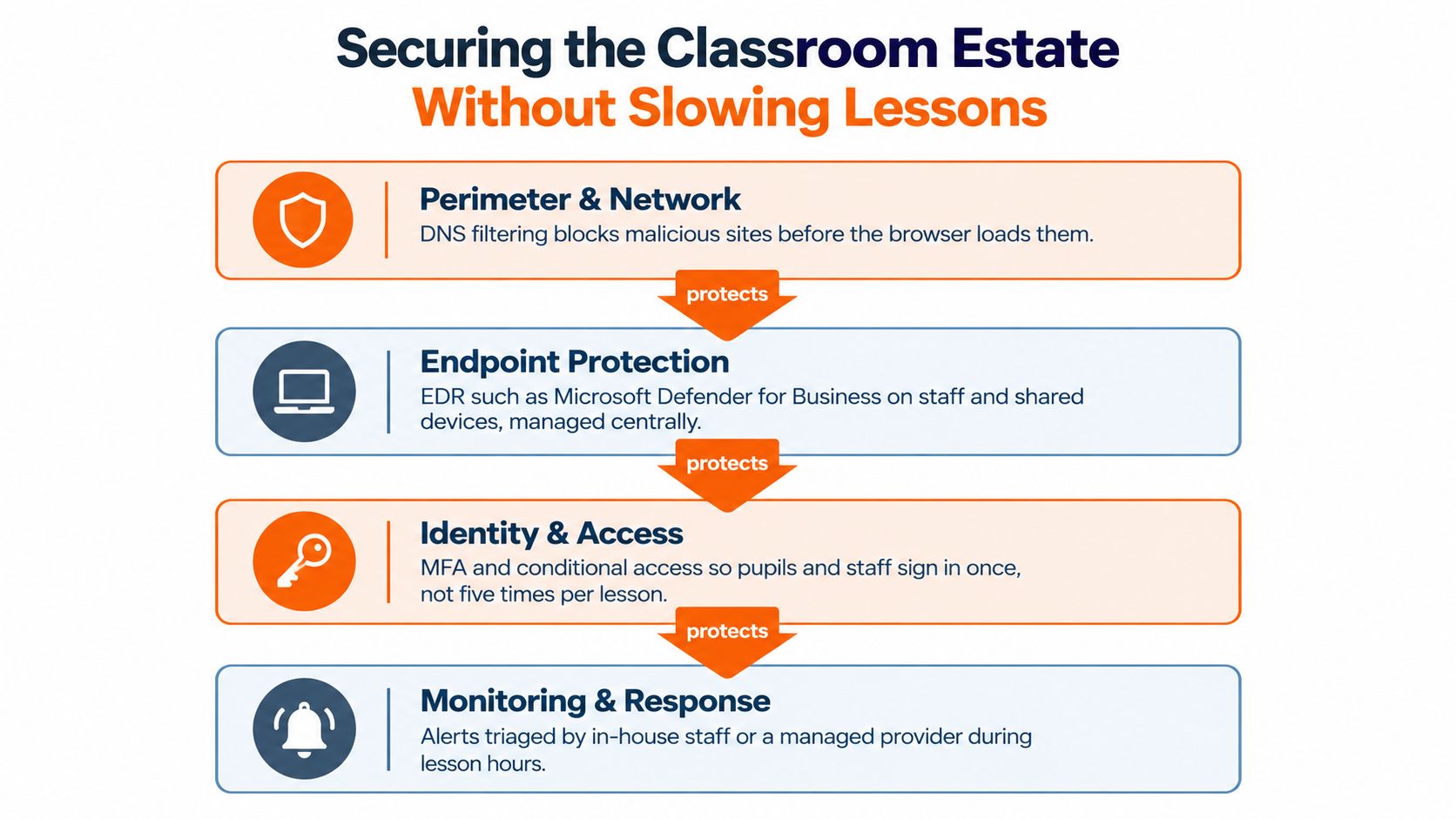
Security controls have to protect pupils and staff without creating a login queue at the classroom door. The effective pattern is layered, centrally managed and designed around the different risks of admin systems, staff endpoints, shared devices and guest access.
Put controls in the right place
Start at the network edge with DNS filtering, using a service such as Smoothwall or Cloudflare for Schools, and combine it with firewall policy. DNS filtering can block malicious and safeguarding-risk categories before the browser session develops, while application-aware controls help restrict unsuitable traffic without blocking legitimate teaching resources.
Staff and shared devices need centrally managed endpoint protection, such as Microsoft Defender for Business or a comparable managed EDR service. Pupil devices require a different emphasis. Filtering, supervision, restricted application access and a clear lost-device process often matter more than treating each tablet like a staff laptop.
Identity controls should use Microsoft Entra MFA and Conditional Access. The policy should distinguish between compliant managed devices, staff access from approved locations and higher-risk sign-ins. Network segmentation should separate admin systems from curriculum traffic and guest Wi-Fi, limiting the damage from a compromised account or unmanaged device.
These measures support evidence gathering for Cyber Essentials and Cyber Essentials Plus. Keep records of device inventories, patch policies, account controls, malware protection, firewall configuration, filtering decisions, vulnerability remediation and incident handling. Certification is easier to maintain when the controls operate every day rather than being assembled just before an assessment.
Make security usable for teachers
Awareness training needs to fit the timetable. Short monthly modules, followed by termly phishing simulations, are more practical than a single annual presentation that nobody remembers when a suspicious invoice arrives. Staff should know how to report a message, lost device or suspected compromise without worrying that reporting will create blame.
Security succeeds when the safe action is the easiest action.
When an incident occurs, the response should be written in plain language. The member of staff reports it to the service desk or named safeguarding contact, the technical lead contains the account or device, leadership assesses operational and safeguarding impact, and the insurer's incident process is followed. Keep the policy location, insurer contact and escalation details accessible to the people who may need them during an outage. Where fraud or criminal activity is suspected, leadership should know when to escalate to Action Fraud.
Backup, Recovery, and Microsoft 365 Resilience
A school's recovery plan must cover more than an on-premises server. The working estate may include file shares, an MIS, SharePoint sites, Exchange Online mailboxes, OneDrive accounts, Teams content and configuration data. Microsoft 365 availability is not the same as an independent backup, so the trust needs a separate recovery design.
Begin with an inventory. List remaining servers, NAS devices, SharePoint sites, mailboxes, OneDrive accounts and the systems required to restore teaching and administration. Then map each workload to a backup product, retention policy, owner and tested recovery method.
A practical school version of the 3-2-1 principle includes image-based backup for remaining servers or NAS to immutable cloud storage, such as Veeam writing to Azure Blob with object lock, alongside a dedicated Microsoft 365 service. Options include Veeam for Microsoft 365, AvePoint and N-able. A suitable Microsoft 365 backup service should cover the data the school uses, including mail, Teams and SharePoint, not just a partial selection of accounts.
Design for recovery, not just retention
Set recovery objectives with leadership. A critical service may need an RPO of 15 minutes and an RTO of one to four hours, while an MIS may have a longer acceptable recovery period. Those are planning targets, not guarantees, and the supplier must confirm what the contract can deliver.
During a ransomware event, immutable backups prevent attackers from rewriting the recovery set. Keep an offline copy of the recovery key and document who can authorise restoration. A clean restore point is useful only if the team can find it, access it and rebuild the right dependencies.
Put a termly restore drill on the calendar, complete an annual full failover exercise and maintain runbooks that a covering technician can follow. Record what was restored, how long it took, which permissions failed and what needs changing.
The short video below provides a useful visual prompt for discussing backup and recovery responsibilities with leadership.
Procurement, Managed Services, and the Rollout Checklist
The procurement decision should start with the service schools need to operate, then work backwards to hardware, licences and support. A trust with several academies needs standards that can be repeated, but each site still requires a survey, a migration plan and local ownership.
Choose a route that survives term time
Use appropriate procurement frameworks, including Crown Commercial Service, YPO or relevant education and public-sector routes, where they fit the requirement. Compare suppliers on more than unit price. Ask for implementation references, security documentation, support hours, escalation routes, asset warranties, data-processing terms and evidence that the supplier can support a multi-site estate.
A managed service is usually justified when the estate is too broad for the internal team's available skills or holiday cover, when the trust needs consistent monitoring across academies, or when downtime has a direct safeguarding and teaching impact. In-house IT may remain the better choice where the team has strong networking, identity, security and recovery capability, and can provide cover during school holidays and staff absence.
The contract should define outcomes rather than vague availability. Specify monitoring, response priorities, term-time critical periods, change approval, backup testing, security reporting and the handoff between the service desk, site staff and leadership. Recurring costs must include licences, filtering, backup, support and replacement planning.
Roll out in controlled phases
Avoid treating the summer holiday as the only change window. Use an initial site to validate design, then deploy in manageable groups while preserving a rollback plan. Schedule wireless surveys, switching changes, device enrolment, telephony migration and staff training as separate workstreams, with one accountable owner coordinating dependencies.
For temporary classrooms, expansion projects or estate changes, the same discipline applies. Questions about power, networking, security and future relocation belong alongside the wider planning conversation, which is why a guide to what to ask before modular construction can be useful when technology must work in a changing building environment.
Use this leadership-ready checklist in the next SLT or governor meeting:
- Connectivity sign-off: Confirm the WAN, firewall and secondary connection have been tested against real classroom demand.
- Wireless validation: Record coverage, capacity, roaming behaviour and controller visibility across every teaching area.
- Device management: Verify that Windows Autopilot, Intune and Apple School Manager cover the agreed estate.
- Application readiness: Confirm Microsoft 365, Teams, OneDrive, printing, accessibility tools and safeguarding policies work in pilot classrooms.
- Identity protection: File evidence for MFA, Conditional Access, account lifecycle and privileged access controls.
- Filtering and endpoint security: Record DNS filtering, EDR coverage, segmentation and exception-approval processes.
- Microsoft 365 backup: Restore representative mail, files, SharePoint content and Teams data, then retain the evidence.
- Telephony failover: Test the main office number, safeguarding line, mobile diversion and power-cut arrangements.
- Incident response: Confirm named contacts, insurer details, reporting routes and escalation decisions.
- Supplier governance: Review SLA performance, unresolved risks, changes and renewal dates.
- Staff readiness: Log attendance for training and publish short guides for common classroom tasks.
- Termly review: Compare incidents, failed changes, device compliance, restore tests and user feedback.
A successful Connect the Classroom programme ends when teachers stop noticing the technology. The network is visible through reliable access, quick recovery and simple sign-in, while IT has the monitoring and documentation to intervene before a lesson becomes an incident.
Blowfish Technology provides managed IT support, secure connectivity, Microsoft 365 enablement, backup and disaster recovery, hosted telephony and Cyber Essentials support for UK organisations. If your school or trust needs a practical plan that connects procurement with day-to-day operations, visit Blowfish Technology to discuss the next step.
